Halftone RIP for screen printing

From client artwork to exposure-ready film.

Open the artwork and Rastrum helps with the rest. AI upscales small files, removes backgrounds and suggests inks. Mesh, LPI, screen angles and dot gain are checked before the film is printed, so what you see on screen is what comes out on the film.
  • On-device AI, 100% offline
  • Automatic recommendations at every step
  • Desktop and phone, one app
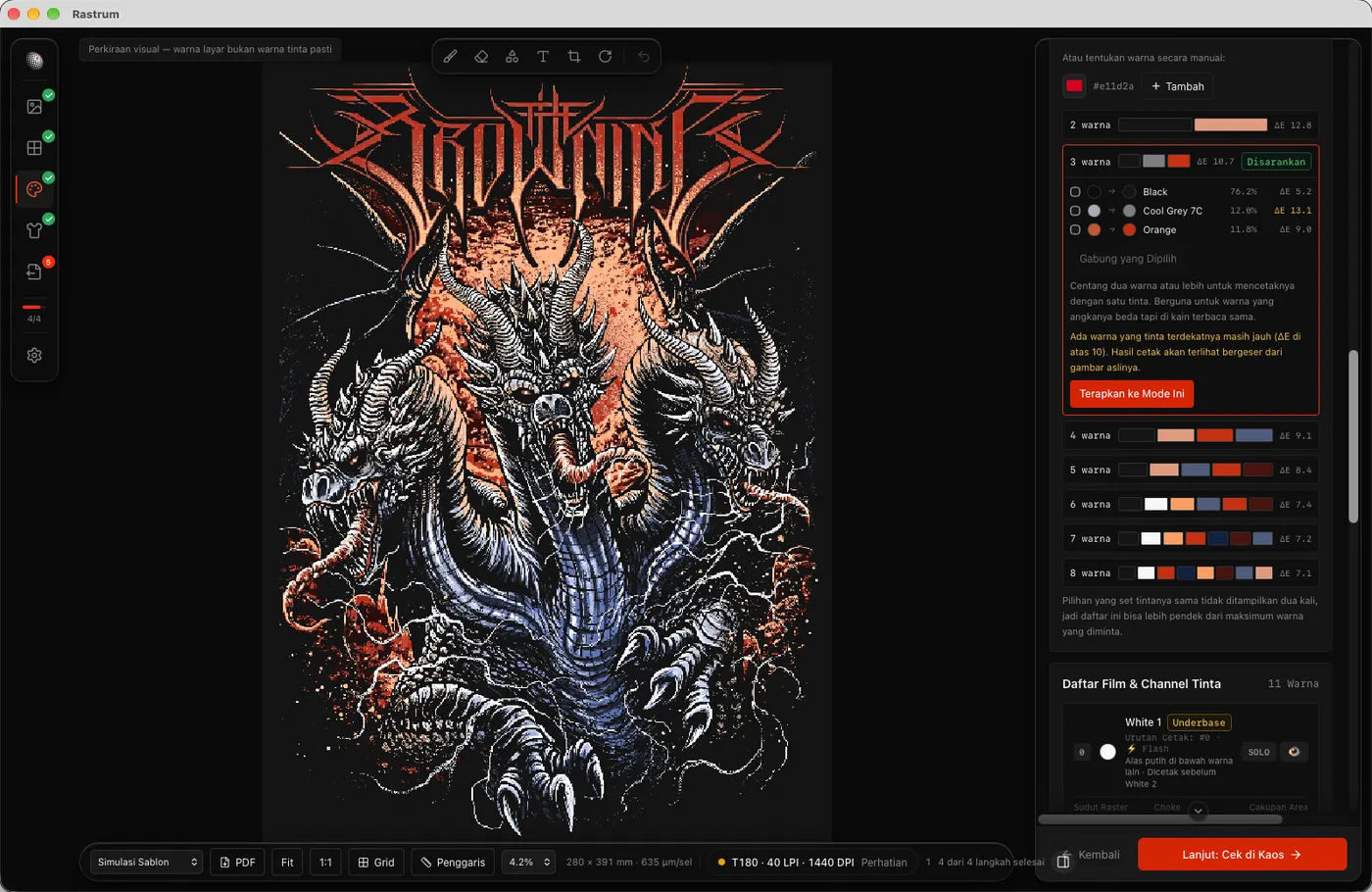
Rastrum on the Color Separation step: a three-headed dragon artwork on the canvas and AI ink palette suggestions in the right panel.

T180 · 40 LPI · 1440 DPI · MIRROR · 1-BIT

AI and recommendations

Rastrum suggests, you decide.

The slow parts are done for you: upscaling small files, removing backgrounds, choosing inks, setting up the screen and finding moiré-free angles. Accept any suggestion with one click or change it yourself.
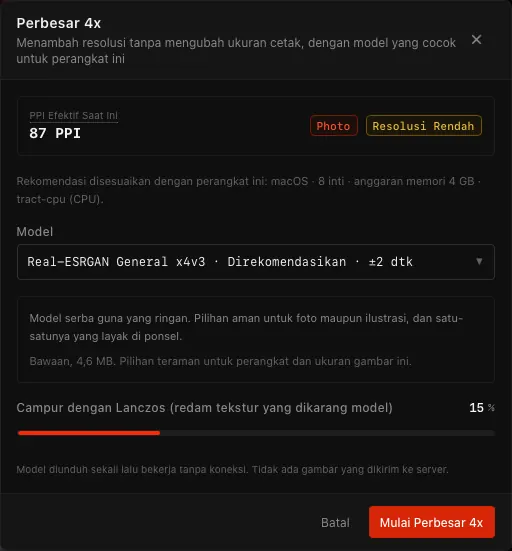
Upscale 4x dialog: current effective PPI, a Low Resolution tag and the Real-ESRGAN model recommended for this device.
Upscale 4× with AI. Small client files gain resolution while the print size stays the same. The model is picked for the kind of image and for your device.
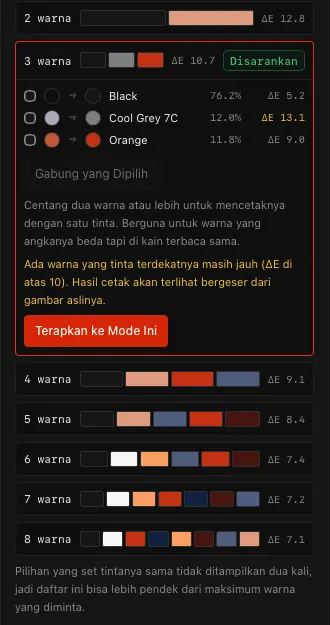
Palette suggestion panel: options from 2 to 8 inks with ΔE values, one marked Recommended.
Ink palette suggestions. Rastrum works out how many inks are enough, matches them to the ink library and marks the Recommended option.
  • Step 1 · Open Image

    Upscale 4× (AI resize)

    72 dpi artwork is upscaled 4× with Real-ESRGAN. Print size stays put, detail goes up. Models for photos and for logos/illustration.

  • Step 1 · Open Image

    Remove background

    Photo or flat-colour backgrounds are removed on the device. Transparent areas are skipped during separation, so no screen is wasted on them.

  • Step 2 · Screen Setup

    Screen recommendation

    Pick a mesh and a printer and Rastrum suggests a safe LPI plus minimum and maximum dot. Click Use recommendation to apply it.

  • Step 3 · Color Separation

    Automatic separation

    Pick the garment colour and a screen limit. Rastrum chooses the inks, builds the white underbase and sets the print order in one click.

  • Step 3 · Color Separation

    Ink palette suggestions

    Artwork colours are grouped and matched to the nearest library ink. The option with the fewest inks that still holds up is marked Recommended.

  • Step 5 · Export Film

    Moiré-free angles

    Auto Angle Setup finds a safe set of screen angles for every channel and explains why.

AI models run on your device without internet. Artwork is never sent to a server. Screen and angle recommendations come from screen-printing physics.

Workflow

Five steps, one direction.

Follow the steps in order. Each one opens once the previous one is done, so no film leaves with settings that were never checked. Every step offers a suggestion you can accept with one click.

  1. 01Open Image
  2. 02Screen Setup
  3. 03Color Separation
  4. 04Check on Garment
  5. 05Export Film
  1. Step 011

    Open Image

    Bring in the artwork and set its print size.

    1. Click Choose artwork file. Formats: PNG, JPEG, TIFF, BMP or WebP.
    2. Enter the Print Size in mm, for example 280 × 350 mm for an adult tee.
    3. Low resolution? Click Upscale with AI. Unwanted background? Click Remove background (AI).

    AI assist: Upscale 4× raises resolution without changing the print size. In this example PPI goes from 87 to 350 for a 280 × 391 mm print.

    Rastrum works out the effective PPI at print size and tells you when the image is too small for the screen you chose.
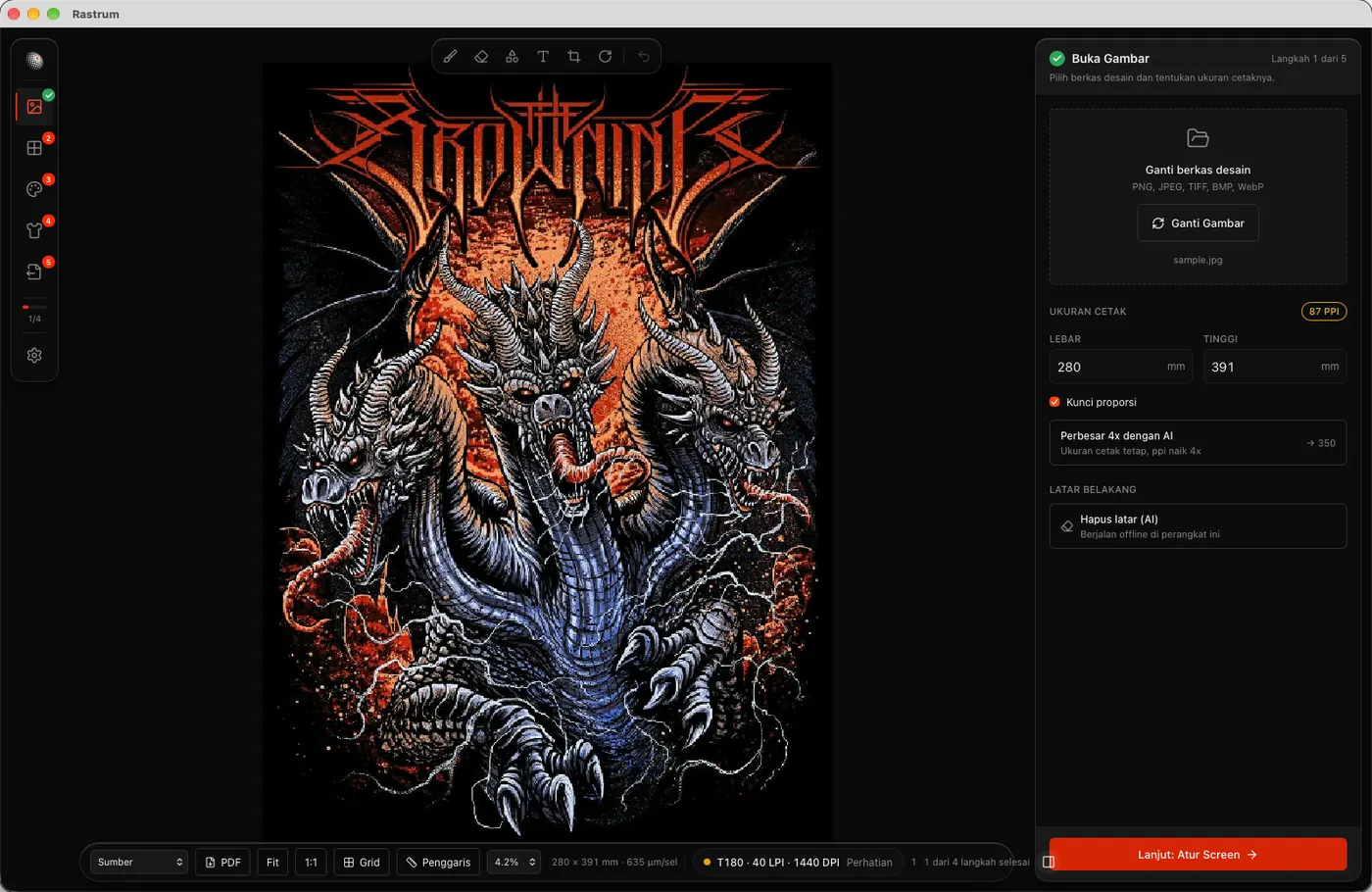
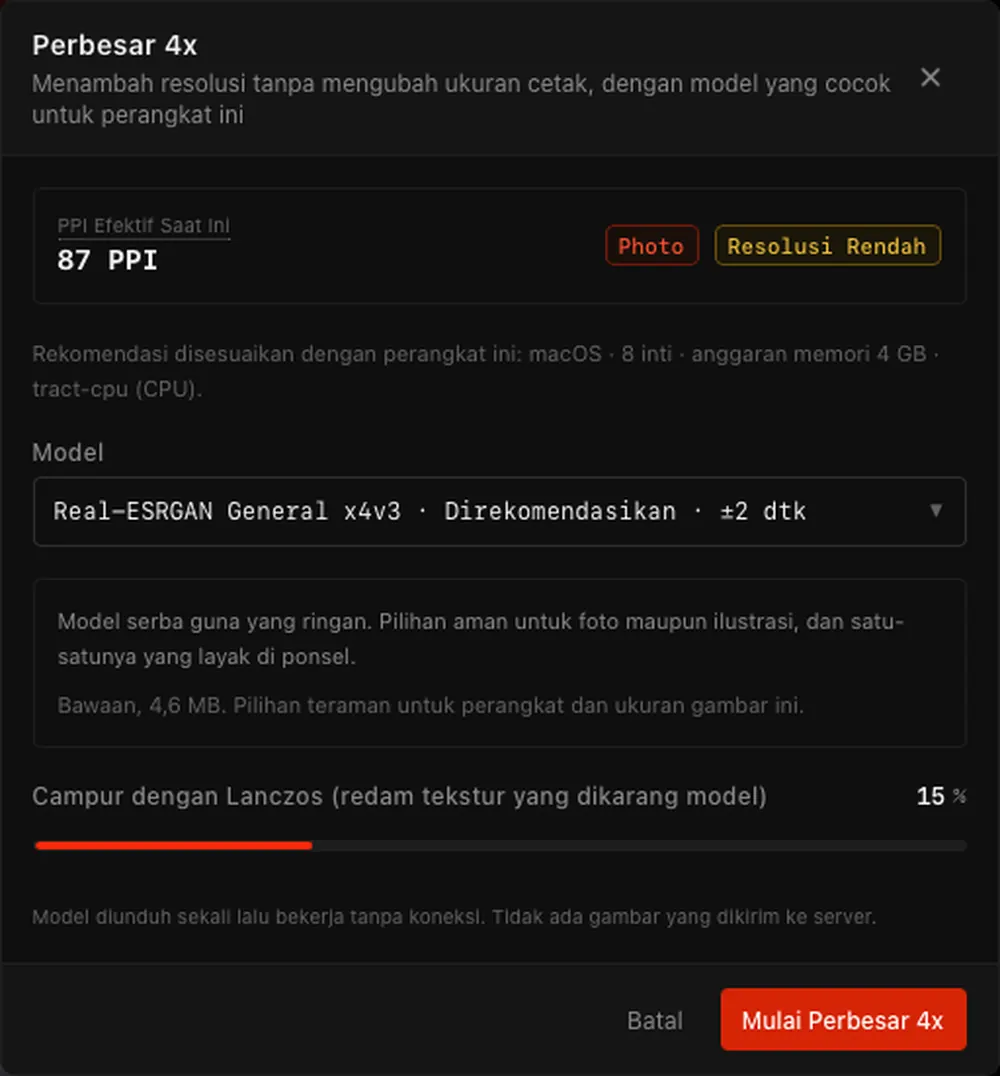
    Open Image step: dragon artwork on the canvas, print size, and the Upscale 4x with AI and Remove background (AI) cards. Upscale 4x dialog: Real-ESRGAN model recommended for this device.
  2. Step 022

    Screen Setup

    Choose mesh, screen frequency and film printer.

    1. Choose the mesh you use, for example T180.
    2. Choose the film printer: Epson inkjet 1440/2880 dpi or a 600/1200 dpi laser.
    3. If the status turns yellow or red, click Use recommendation.

    Automatic recommendation: Safe LPI, minimum and maximum dot, and the DPI you need are worked out from your mesh and printer, then applied in one click.

    Green, yellow or red tells you whether the film will hold. The next step stays locked until red issues are fixed.
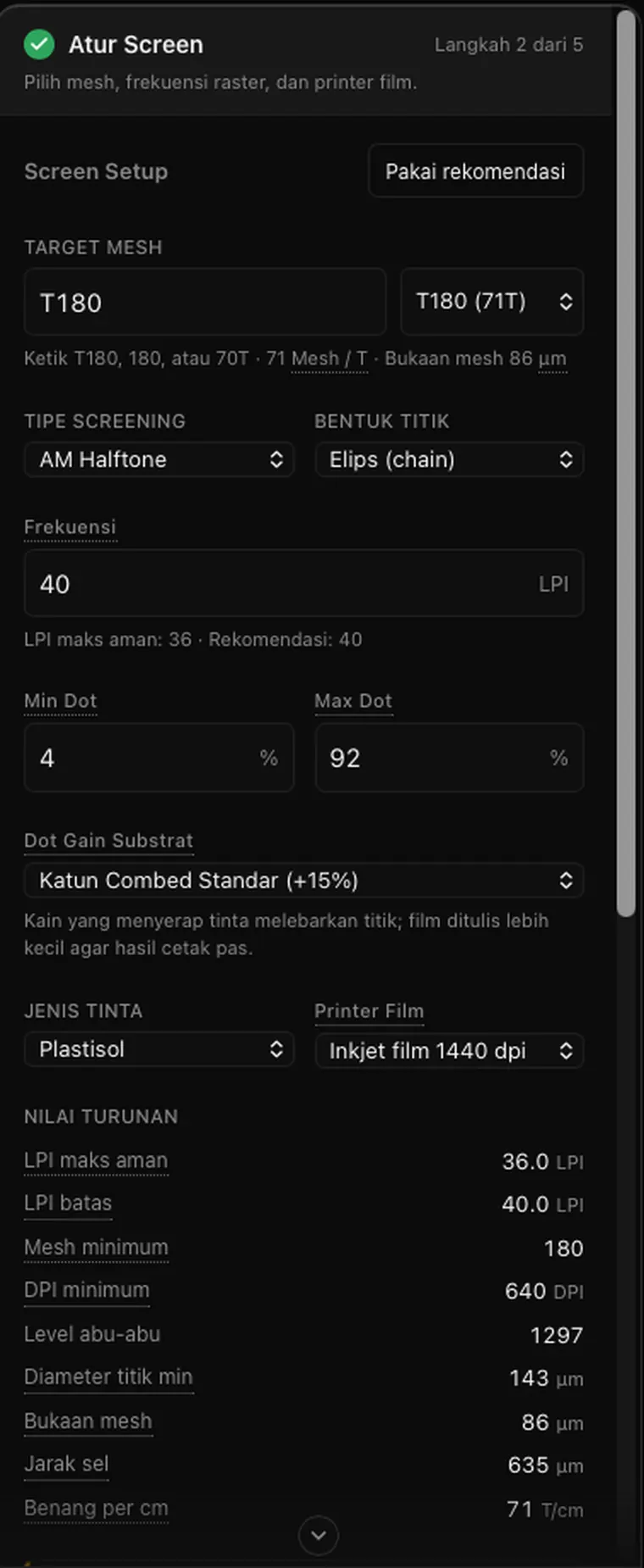
    Screen Setup panel: derived values such as safe LPI, minimum mesh, minimum DPI, and the dot gain compensation curve.
  3. Step 033

    Color Separation

    Split the image into inks, one ink per screen.

    1. In Quick Screen-Print Separation, pick the garment colour and a screen limit, for example black shirt and 12 screens.
    2. Click Separate Automatically. Rastrum picks the inks, builds the underbase and sets the print order.
    3. Want to compare? Click Analyze Artwork Colors and look for the option marked Recommended.

    AI assist: Rastrum never uses more screens than it needs. In this example a 12-screen limit is met with 11 films at an average ΔE of 2.1.

    Each ink becomes one film. Inks, angles and print order can still be changed one by one.
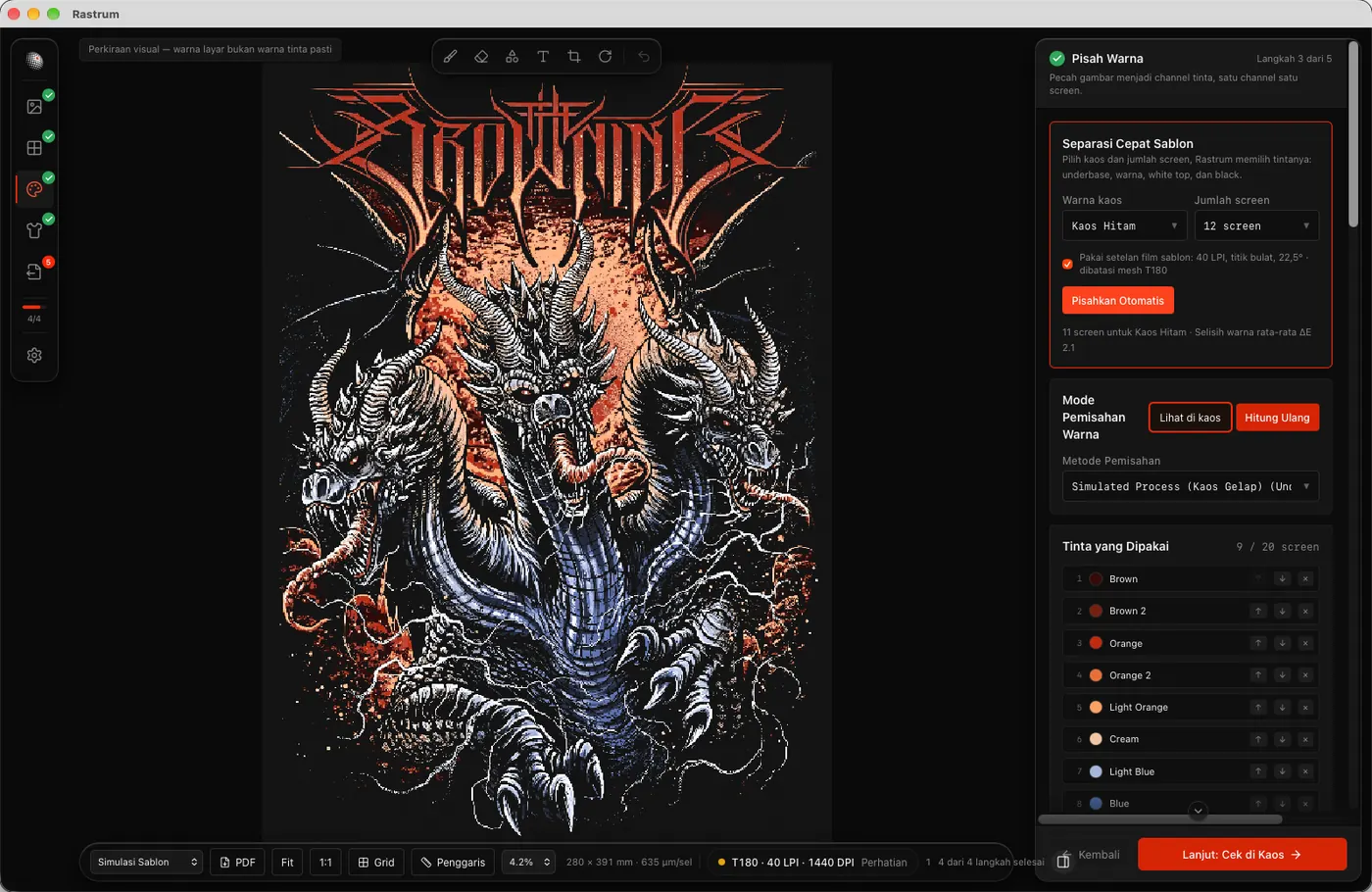
    Color Separation step: Quick Separation for a black shirt with a 12-screen limit produced 11 screens, average ΔE 2.1.
  4. Step 044

    Check on Garment

    Preview the print on the shirt before any film is made.

    1. Choose the garment colour and fabric.
    2. Hold the compare button to see the original artwork.
    3. Save a PNG proof for client approval.

    Calculated for you: Ink stacking and squeegee dot gain are simulated, so the client sees a realistic preview rather than a mockup.

    Colour mistakes show up on screen, not after the screen has been exposed.
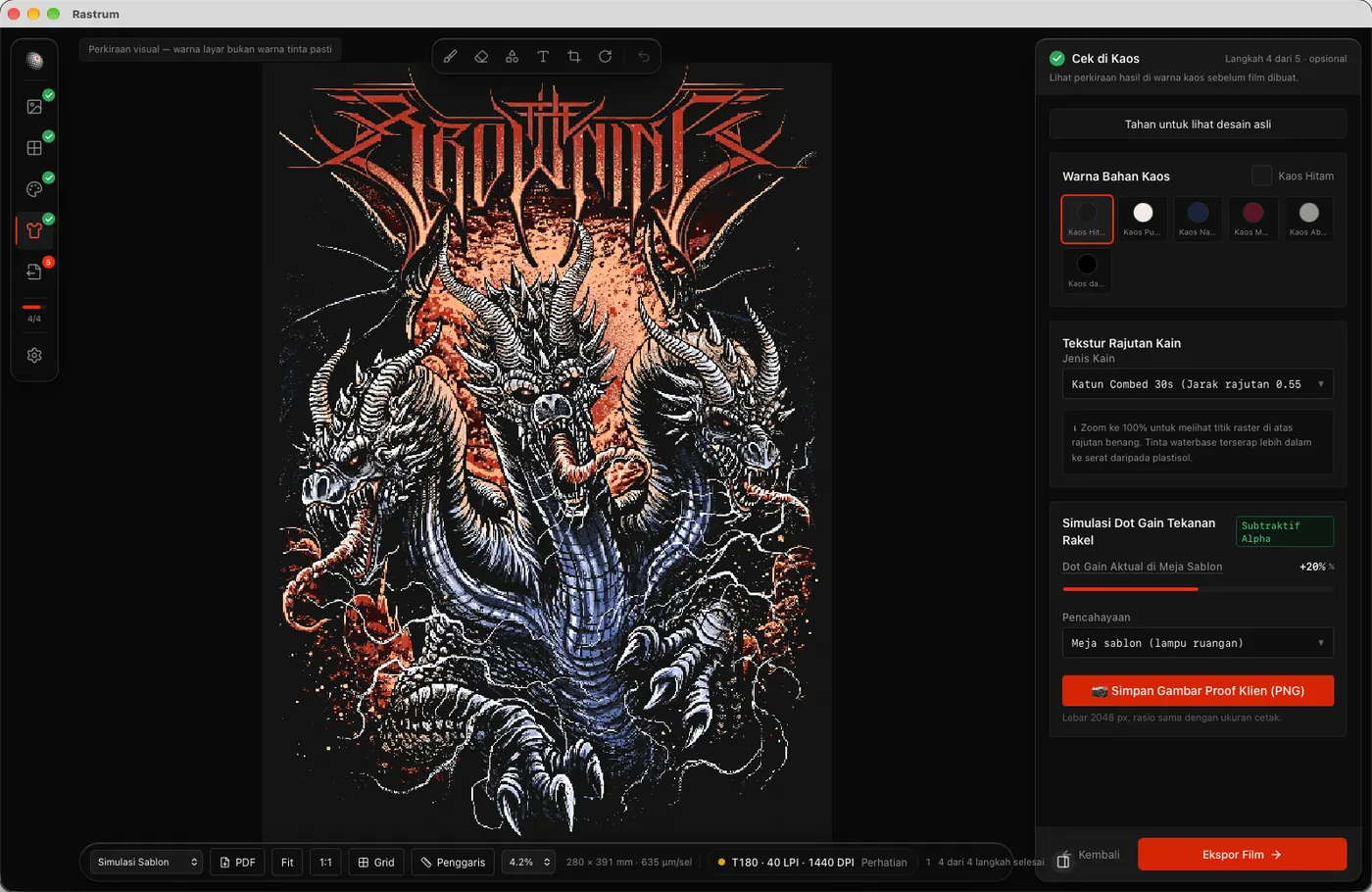
    Check on Garment step: the dragon artwork simulated on a black shirt with fabric, dot gain and lighting options.
  5. Step 055

    Export Film

    Run the preflight, then save films ready to print.

    1. Read the Preflight Inspection. Every item should pass.
    2. Moiré risk? Click Auto Angle Setup (Anti-Moiré).
    3. Choose 1-bit TIFF or PDF and a folder, then click Export Film.

    Automatic recommendation: Auto Angle Setup searches for a safe set of screen angles for every ink and shows the moiré score before and after.

    Pure black-and-white films, mirrored and negative to suit your printer, with registration marks and a label per ink. Export requires sign-in.
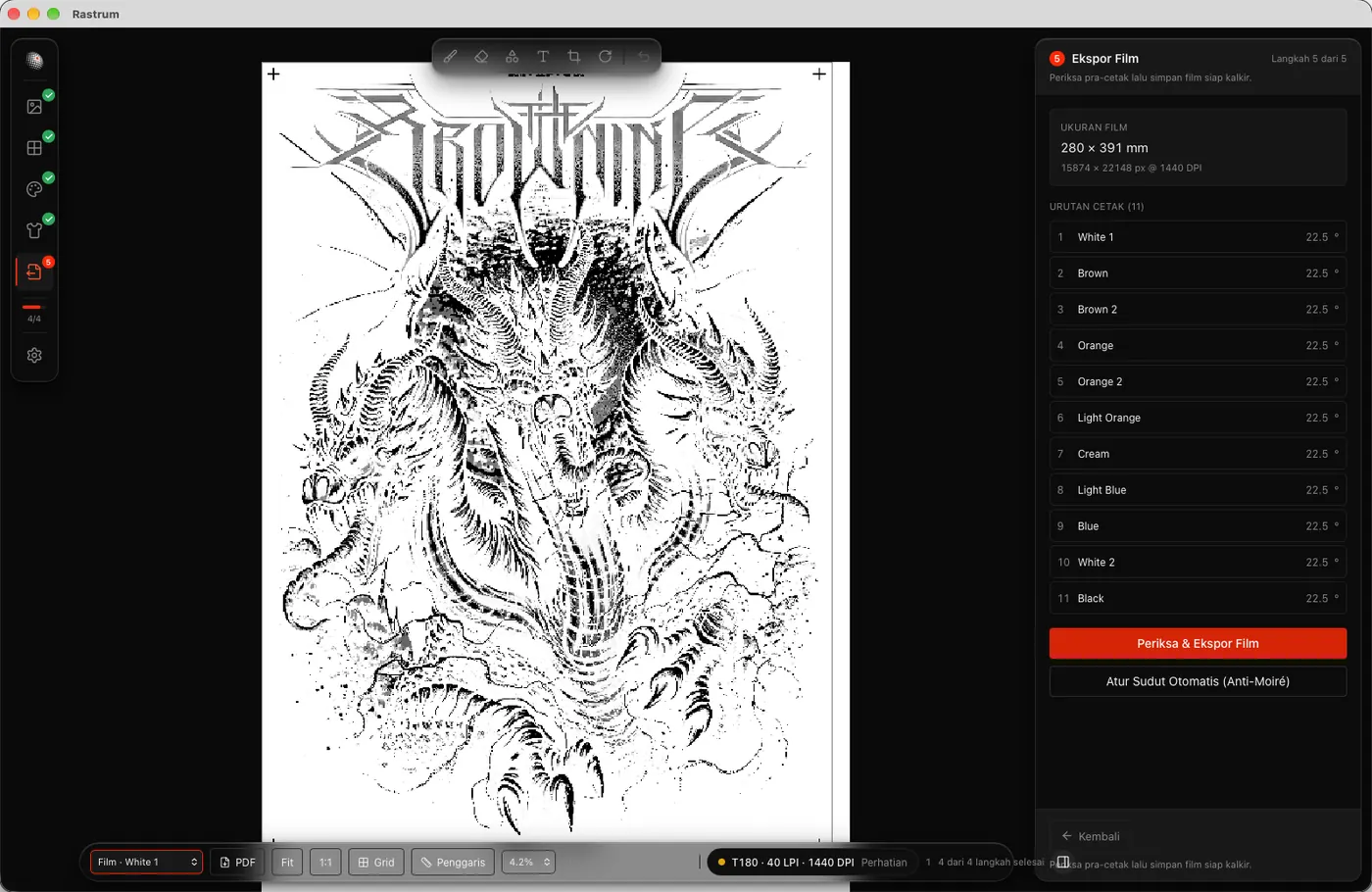
    Export Film step: the black-and-white White 1 (underbase) film with registration marks and an 11-ink print order.

Why Rastrum

Built for the print table, not just the screen.

Physics first, looks second.

Every halftone parameter is validated against the mesh, printer DPI, and fabric dot gain. When it is red, export is held until you fix it or deliberately override.

Preview equals output.

The on-screen view and the exported film are computed by the same raster engine. No more "looked fine on screen, different on film".

Fully offline.

All computation and AI run on your device. Client artwork is never uploaded to any server.

One app, every device.

macOS, Windows, Linux, Android, and iOS from one project. The layout adapts to phone, tablet, and desktop instead of just shrinking.

All features

From mesh to transparency.

Everything listed here is in the app today.

Screen setup and validator

  • Mesh presets T120 to T300, typed as mesh count or threads per cm
  • Safe maximum LPI computed automatically from the mesh
  • Film printer profiles: Epson inkjet 1440/2880 dpi, laser 600/1200 dpi
  • Checks DPI ≥ 16 × LPI and the number of grey levels per cell
  • Min/max dot recommendation from physical dot size vs mesh opening
  • Green, yellow, red status with one-click fix recommendations

Halftone engine

  • AM halftone, FM stochastic, and Hybrid (XM)
  • Six dot shapes: round, elliptical, euclidean, square, line, diamond
  • Per-channel angles with supercells; actual angle and LPI reported
  • Angle presets: CMYK screen print, CMYK offset, single color 22.5°, simulated process
  • 1:1 preview with zoom and pan on the canvas
  • Guaranteed linear tone, tested per dot shape

Dot gain curves

  • Per-channel dot gain compensation
  • Presets for cotton 15/20/25/30 %, plastisol, waterbase
  • Curve editor with live preview
  • Min/max dot applied after the curve so highlights do not drop and shadows do not plug

Color separation and inks

  • Modes: grayscale, spot color, CMYK, index, simulated process
  • Ink library: plastisol, waterbase, discharge, and specialty
  • Garment and fabric presets
  • Automatic white underbase with choke, plus highlight white
  • Solo, mute, and print order per channel
  • Separation runs in the background with progress and cancel

Anti-moiré

  • Beat-frequency analysis between channels and against the mesh threads
  • An easy-to-read moiré score
  • Auto-Angle: finds a safe angle combination for all channels
  • Warnings for 0°/90° angles on dominant inks

AI and recommendations

  • Upscale 4× for 72 dpi files (Real-ESRGAN, ONNX)
  • Models for photos and for logos/illustration, picked for your device
  • Background removal with AI or a flat-colour mode
  • Ink palette suggestions and automatic colour merging
  • One-click screen and moiré-free angle recommendations
  • Models verified by SHA-256 before install

Soft proof

  • Simulates the ink stack on your chosen shirt color
  • Fabric and garment options
  • Lighting presets
  • PNG proof export for client approval

Film export

  • 1-bit TIFF (G4 compression) and PDF, no grey
  • Preflight before export
  • Mirror and negative to match the printer
  • Registration marks and per-channel labels
  • Per-layer PDF for separate printing
  • Written strip by strip, handles A3 at 2880 dpi

Projects and account

  • Open .rastrum project format (ZIP) with autosave
  • Try every step without an account
  • Sign in with Google, GitHub, or Apple to export
  • Bahasa Indonesia and English
  • Light and dark themes

Rules we enforce

Three numbers that make or break a film.

Rastrum computes them for you and refuses to export when they do not fit.

Mesh ≥ LPI × 4.5

LPI to mesh ratio

Halftone dots need enough threads to sit on. Too fine a screen and dots fall through the mesh openings and vanish.

T180 → 40 LPI maximum

DPI ≥ LPI × 16

Printer resolution

Each halftone cell needs enough printer pixels to form its grey levels.

45 LPI @ 1440 dpi → 1,025 levels

Min 4 % · Max 92 %

Printable dots

Dots smaller than the mesh opening are dropped, shadows that would plug are made solid. Derived from the mesh you pick.

T180: 4 % dot ≈ 90 µm opening

Platforms

At the table, on the phone, on the tablet.

One Tauri 2 codebase with a Rust raster core. Every feature on every device.

  • macOSApple Silicon and Intel
  • Windows.msi / .exe installer
  • Linux.deb and AppImage
  • AndroidPhone and tablet
  • iOSiPhone and iPad

FAQ

Frequently asked.

Do I need an internet connection?

No. Once installed, all computation and AI run on the device. Optional AI models are downloaded once and then used offline.

Do I need an account?

Not to try it. Open Image, Screen Setup, Color Separation and Check on Garment all work without an account. To save films, PDFs or proof images, sign in with Google, GitHub or Apple. Your projects stay on your device.

What printer do I need?

Any printer that can print film or vellum: an Epson inkjet with film ink, or a 600/1200 dpi laser. Rastrum exports pure 1-bit so the ink is 100 % solid. Dmax is still up to the printer and media.

What formats come out?

1-bit TIFF and PDF, printable through the OS driver or a third-party film RIP. Soft proofs are saved as PNG.

Is Rastrum an image editor?

Not a design editor. It has light editing tools for film prep: crop, rotate, brush, eraser, shapes and text. Designing still happens in your image app.

The client's file is only 72 dpi. Will it work?

Yes. Click Upscale with AI on the Open Image step. A super-resolution model runs on your device and raises resolution 4× without changing the print size. Without an AI model, Rastrum falls back to Lanczos3.

Download

Ready to make film?

Pick your operating system. Every step can be tried without an account.

  • macOS

    macOS 11 or later. Apple Silicon and Intel in one file.

    Download .dmg
  • Windows

    Windows 10 and 11, 64-bit.

    Download .exe

    Other formats: .msi

  • Linux

    x86_64. AppImage runs on almost any distro.

    Download AppImage

    Other formats: .deb .rpm

  • Android

    Android phones and tablets.

    Coming soon

    In preparation. Watch the releases page.

  • iOS

    iPhone and iPad.

    Coming soon

    In preparation. Watch the releases page.

Version 0.1.0 · See all releases